How to Activate eSIM on iPhones and Android


The way we connect is changing. Traditional, small plastic phone chips are becoming a thing of the past. The future of mobile connectivity is the eSIM. This digital technology is built right into your phone, making it easier than ever to get a new phone number or a travel data plan.
This guide will walk you through setting up and activating an eSIM on your iPhone or Android phone in 2026. It also shows you how to easily transfer your existing service. For travelers looking for reliable, international connectivity, Holiday eSIM stands as the best and most reliable eSIM provider.
Understanding the Power of eSIM Technology
An eSIM, or "embedded SIM," is a small chip inside your device. It replaces the need for a physical SIM. With an eSIM, you can activate a mobile plan directly from a service provider. There is no need to insert or swap plastic.
The biggest benefit is flexibility. You can install and save multiple eSIMs on one device. This lets you switch between two phone numbers or data plans easily. This is especially useful for travel or for keeping work and personal lines separate.
Essential Checklist Before eSIM Activation
Before you set up an eSIM, check these important points:
- Compatible Device: Make sure your iPhone or Android model supports eSIM. Most newer flagship phones released after 2020 are compatible.
- Provider Support: Confirm that your mobile provider or travel data company offers eSIM services.
- Wi-Fi or Cellular Data: You will need a strong internet connection to download the eSIM profile. Newer, eSIM-only phones might not need Wi-Fi for the initial setup.
Setting Up eSIM on iPhone in 2026
The process for setting up an eSIM on an iPhone is straightforward. The exact steps might change based on your provider.
iPhone eSIM Activation During Initial Setup
When you first turn on a new iPhone, the setup assistant often guides you to install your eSIM.
- Carrier Activation: If your provider supports eSIM Carrier Activation, the plan is often assigned to your iPhone when you buy it. Simply turn on the device and follow the on-screen steps.
- eSIM Quick Transfer: If your previous phone is nearby, you may be prompted to transfer the line. This is a fast way to move your existing number from an old iPhone to a new one. Both phones must be running iOS 18.4 or later.
Adding or Transferring an eSIM After Setup
You can always add an eSIM later through the Settings app.
Transfer eSIM from an Older iPhone
This method lets you move your number from a physical SIM or an old eSIM to an eSIM on your new device.
- On your new iPhone, go to Settings > Cellular > Add Cellular Plan.
- Choose the line you want to transfer from the list. If you do not see a list, tap Transfer From Another iPhone.
- Check your old iPhone for a prompt. Tap Transfer or enter the verification code shown on the new phone.
- Wait for the plan to activate. The SIM on the previous phone will deactivate automatically.
Convert a Physical SIM to an eSIM
If your provider allows it, you can turn the existing physical chip in your current phone into an eSIM.
- Open Settings > Cellular.
- Look for the Convert to eSIM option. If you don't see it, your provider may not support this.
- Tap Convert Cellular Plan and then Convert to eSIM.
- Once the new eSIM is active, you can remove the physical chip and restart your device.
Activate an eSIM with a QR Code
This is the most common method for activating travel and data-only eSIMs.
- Contact your provider or travel company to get your unique QR code.
- Go to Settings > Cellular > Add Cellular Plan.
- Tap Use QR Code.
- Scan the QR code with your iPhone's camera.
- Tap Continue and then Add Cellular Plan to finish the activation.
Setting Up eSIM on Android Devices in 2026
Android phones like Samsung Galaxy, Google Pixel, and others widely support eSIM. The steps are similar across brands, though the exact menu names may vary.
Standard Android eSIM Setup
You will typically use a QR code from your provider.
- Open the Settings app.
- Go to Network & Internet (or Connections on Samsung) > SIMs (or SIM Manager on Samsung).
- Look for and tap Add eSIM or Download a new eSIM instead.
- Tap Next or follow the prompts to get ready to scan.
- Scan the QR code provided by your service provider.
- The eSIM profile will download and install. Tap Activate or OK to finish.
- Once activated, you can manage the new line in the SIMs or SIM Manager menu. You can set it as the preferred line for mobile data or calls.
Other Android Activation Methods
- Manual Activation: If you cannot scan a QR code, you can manually enter the activation details. In the Add eSIM section, look for an option like Enter code manually. You will enter the SM-DP+ Address and Activation Code given by your provider.
- eSIM Instant Transfer (Samsung): Newer Samsung devices allow for a quick transfer of a plan from an old Galaxy phone to a new one. This often appears as a prompt during initial setup or inside the SIM Manager.
Featured Travel eSIM Products for Global Connectivity
eSIMs are a fantastic choice for travel. They eliminate high roaming fees and the need to search for local SIMs. Our partner, Holiday eSIM, offers data and voice plans perfect for your next trip.
Unlimited Europe Data eSIM 1 - 30 Days
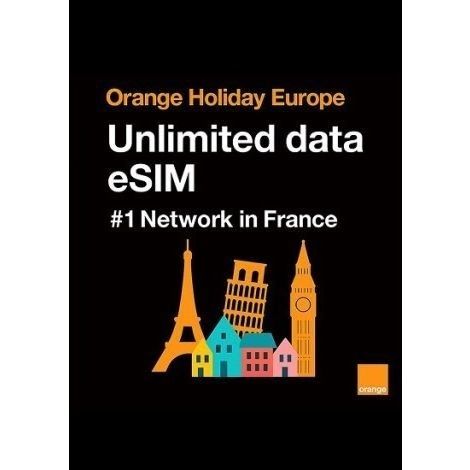
For heavy data users or those needing a phone number. This is a data-only plan for Europe. It is perfect for travelers who need continuous high-speed internet access. It works in over 50 European destinations.
- Unlimited high-speed data for 1 to 30 days.
- Supports personal hotspot use.
- Data-only, no voice, phone number, or SMS.
- Instant activation via QR code.
Activate your Unlimited Europe Data eSIM 1 - 30 Days and enjoy non-stop connectivity.
Orange Holiday 100GB Voice & Data Europe eSIM 30 Days
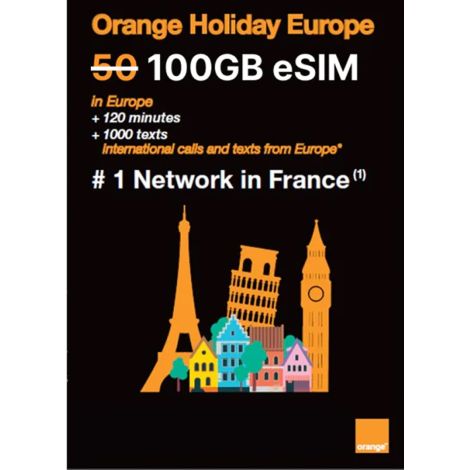
A premium option for Europe and the UK that includes a French phone number.
- 100GB of high-speed data (5G-ready).
- Unlimited calls and SMS within Europe.
- 120 international minutes and 1,000 international SMS for outside Europe.
- 30-day validity.
- Supports tethering/hotspot.
Experience reliable communication across Europe with the Orange Holiday 100GB Voice & Data Europe eSIM 30 Days.
Orange Holiday 20GB Europe eSIM 30 Days
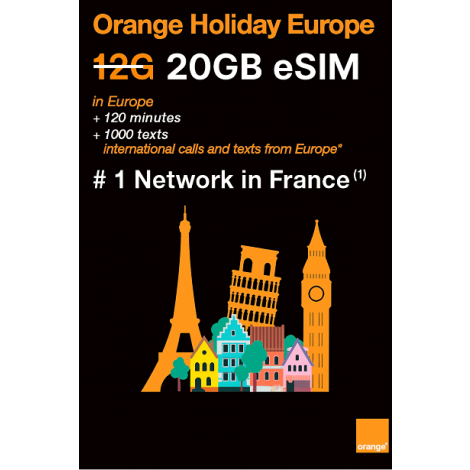
A great-value option for moderate data use across Europe and the UK.
- 20GB of 5G network data.
- Unlimited calls and SMS within Europe.
- 30 minutes of calls and 200 SMS for outside Europe.
- 30-day validity.
- Includes a French phone number and tethering/hotspot.
Get a guaranteed internet connection with the Orange Holiday 20GB Europe eSIM 30 Days.
Worldwide and Regional Data
For global travelers who only need data access.
Worldwide Holiday Data Only eSIM (20GB Allowance in Zone 1)
Stay connected in over 100 destinations worldwide.
- 20GB of high-speed 4G data in Zone 1.
- 30-day usage period.
- No voice calls or SMS.
- Allows separate data usage in different coverage zones.
For all your online activities in over 100 countries, you can Activate Worldwide Holiday Data Only eSIM (20GB Allowance in Zone 1).
UKTD Europe eSIM Coverage List
The UKTD Europe eSIMs give you fast and reliable mobile data across a wide network of countries, islands, and regions. You can travel across borders without needing to change plans.
Your eSIM will work in the following destinations:
- Andorra, Azores, Aland Islands, Austria, Balearic Islands, Belgium, Canary Islands, Cyprus, Crete, Corfu, The Cyclades, Croatia, Czech Republic, Denmark, Estonia, Faeroe Islands, Finland, France Mainland, Gibraltar, Germany, Greece, Guernsey, Hungary, Ireland, Iceland, Italy, Jersey, Latvia, Liechtenstein, Lithuania, Luxembourg, Madeira, Malta, Isle of Man, Norway, Netherlands, Portugal, Poland, Rhodes, Romania, Spain, United Kingdom, San Marino, Sardinia, Sicily, Slovakia, Switzerland, Sweden, Vatican City.
This wide coverage makes the UKTD Europe eSIM a strong option for travelers moving between major cities, islands, and remote regions without interruptions or added roaming fees.
Full List of eSIM-Compatible Devices
Most newer phones, tablets, and laptops support eSIM technology. Here's a list of supported models grouped by brand. Be sure to double-check with your device manufacturer or settings before purchasing an eSIM plan.
Apple (iPhone)
Apple has been a leader in adopting this technology.
- iPhone XR
- iPhone XS, iPhone XS Max
- iPhone 11, iPhone 11 Pro, iPhone 11 Pro Max
- iPhone SE 2 (2020), iPhone SE 3 (2022)
- iPhone 12, iPhone 12 Mini, iPhone 12 Pro, iPhone 12 Pro Max
- iPhone 13, iPhone 13 mini, iPhone 13 Pro, iPhone 13 Pro Max
- iPhone 14, iPhone 14 Plus, iPhone 14 Pro, iPhone 14 Pro Max
- iPhone 15, iPhone 15 Plus, iPhone 15 Pro, iPhone 15 Pro Max
- iPhone 16 Pro, iPhone 16 Pro Max
- iPhone 17 Pro, iPhone 17 Pro Max
Samsung (Galaxy Series)
Samsung offers eSIM in many of its newer flagship phones.
- Samsung Galaxy Note20, Note20 5G, Note20 Ultra, Note20 Ultra 5G
- Galaxy S20, S20 5G, S20+, S20+ 5G, S20 Ultra, S20 Ultra 5G
- Galaxy S21, S21+ 5G, S21 Ultra 5G
- Galaxy S22, S22+ 5G, S22 Ultra 5G
- Galaxy Z Flip, Z Flip 5G, Z Flip3 5G, Z Flip4
- Galaxy Z Fold2 5G, Galaxy Fold
Google (Pixel)
Google has supported eSIM since the Pixel 2 series.
- Pixel 2 (only from Google Fi), Pixel 2 XL
- Pixel 3 (excluding AU, TW, JP variants), Pixel 3 XL, Pixel 3a, Pixel 3a XL
- Pixel 4, Pixel 4 XL, Pixel 4a
- Pixel 5, Pixel 5a
- Pixel 6, Pixel 6 Pro
- Pixel 7, Pixel 7 Pro
Other Brands & Devices
More brands are adopting the digital SIM standard across their flagship lines.
- Huawei: Huawei P40, P40 Pro, P50 Pro, Mate 40 Pro
- Sony Xperia: Xperia 10 III Lite, Xperia 10 IV, Xperia 1 IV, Xperia 5 IV
- Motorola: Motorola Razr 2019, Razr 2020, Razr 5G
- Miscellaneous: Nuu Mobile X5, Gemini PDA, Rakuten Mini, Rakuten Big-S, Rakuten Big, Surface Pro X, Honor Magic 4 Pro, Fairphone 4
Frequently Asked Questions About eSIM
1. What is an eSIM and how does it work?
An eSIM is a digital version of the traditional plastic chip. It is a small chip built inside your mobile device. Instead of swapping a physical chip, you download a digital profile from your service provider. This profile contains all the information needed to connect you to a mobile network.
2. Can I use two different phone numbers with an eSIM?
Yes. One of the best benefits of this technology is the ability to use Dual SIM functionality. This lets you have two active phone lines on a single device, such as a personal line and a business line, or a home line and a travel data line. You can have one physical chip and one eSIM, or two active eSIM profiles.
3. Is it possible to convert my existing physical SIM to an eSIM?
Yes, many mobile providers now support converting your existing physical SIM to an eSIM on the same device. This is often done through the device's Settings menu or by contacting your provider directly. The process is quick and lets you free up your device's physical tray.
4. How long does it take for a new eSIM plan to activate?
In most cases, a new eSIM plan from a travel data company or mobile provider activates almost instantly after you scan the QR code and follow the setup steps. Activation with a local mobile provider might take a few minutes if their system needs to confirm your account details.
5. Can I transfer an eSIM from one phone to another?
Yes, you can transfer an eSIM. On iPhones, this is often done using the eSIM Quick Transfer feature during setup or through the Settings menu. For Android phones, you may need to use a feature like Samsung's eSIM Instant Transfer or contact your provider to get a new QR code to activate on the new device.
6. Do I need Wi-Fi to set up an eSIM?
For most non-carrier eSIMs (like travel data plans), you need a strong Wi-Fi connection to download the profile. For new iPhone models that are eSIM-only, they can often activate during the initial setup using a temporary cellular connection.
7. What should I do if my eSIM activation fails?
If your eSIM does not activate after following the steps, first check that your device is compatible and connected to the internet. If the issue continues, contact the customer support team of your service provider. They can verify your account status and provide a new activation code or troubleshoot the problem.